How to Clean Google Drive Safely (Complete Guide)
Learn how to clean Google Drive safely without breaking sharing, ownership, or access. A practical, risk-aware guide.
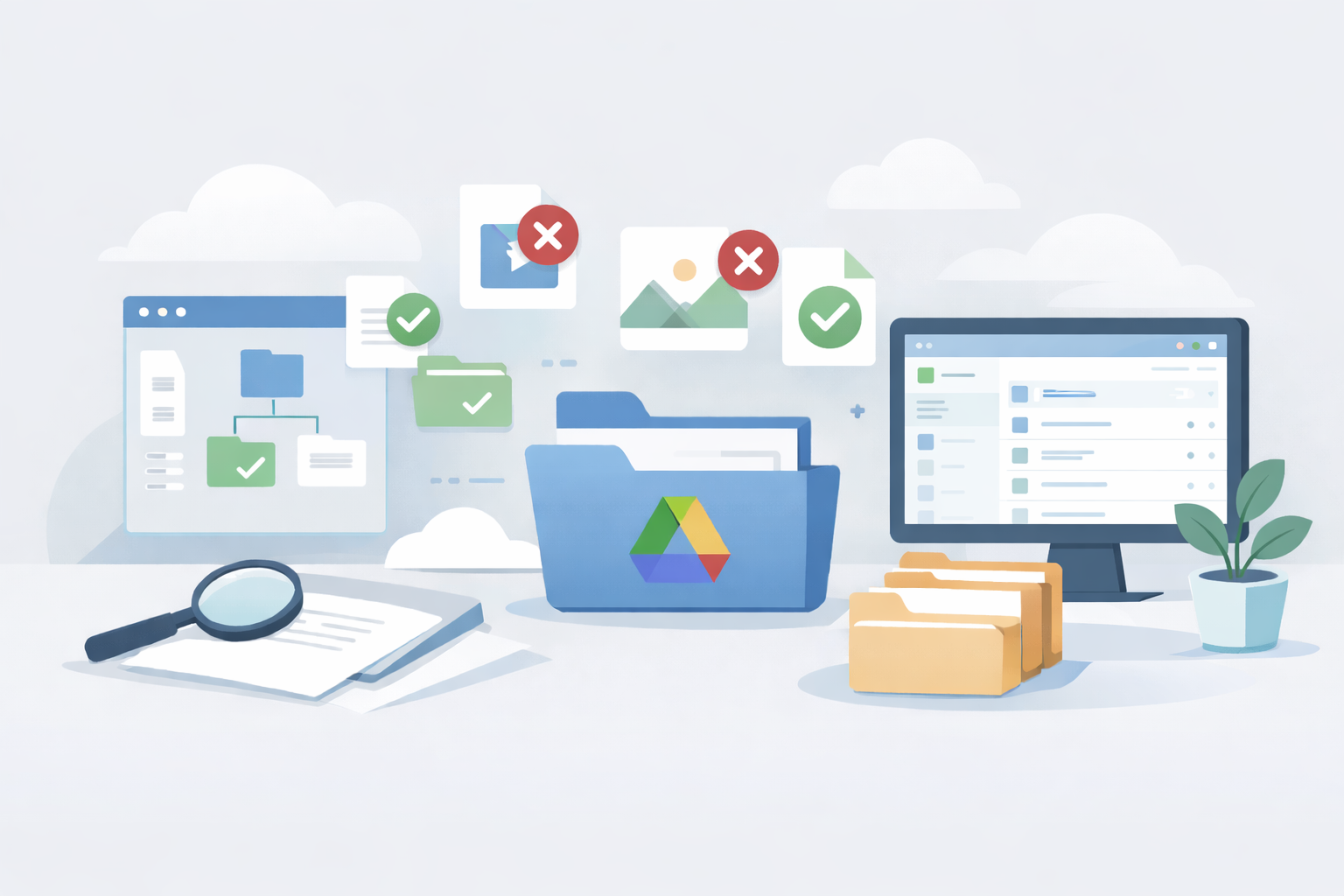
How to Clean Google Drive Safely (Complete Guide)
Cleaning Google Drive sounds simple. Delete old files, free up space, move on.
In practice, it’s one of the easiest ways to accidentally remove access for other people, break shared workflows, or permanently lose important data. That usually doesn’t happen because users are careless — it happens because Google Drive hides critical context by default.
This guide explains what Google Drive cleanup really means, why it often goes wrong, and how to approach it safely and deliberately.
What Google Drive cleanup actually means
Google Drive cleanup is not just about removing files you no longer need.
It’s about understanding what exists in your Drive, who owns it, and who depends on it — and then making careful decisions based on that context.
A safe cleanup process focuses on visibility before action. You want to know which files are large, which ones are duplicated, which ones are shared, and which ones are owned by you versus others. Without that understanding, deletion becomes guesswork.
Most accidental data loss in Google Drive happens when files are deleted without this context.
Why Google Drive fills up faster than expected
Many people are surprised to see their Google Drive storage nearly full even though they don’t remember uploading much recently.
This usually happens gradually. Large files accumulate over time. Old projects are never fully cleaned up. Files shared with others remain in your Drive because you still own them. Backups, exports, and media files quietly take up space.
Google Drive’s interface does not clearly show which files are responsible for most of the storage usage. As a result, people often start deleting files blindly, hoping to free space quickly — and that’s where problems begin.
Why deleting the wrong file can cause real damage
Google Drive behaves differently from local storage, and that difference matters.
If you delete a file that you own, it disappears for everyone who has access to it. If you delete a shared folder, everything inside it goes with it. If you remove a file that’s linked inside documents or workflows, those references silently break.
These consequences are rarely obvious at the moment of deletion. They show up later, when someone else suddenly can’t access something they relied on.
Cleanup mistakes are rarely technical failures — they’re contextual ones.
Ownership matters more than folders
One of the most common misunderstandings about Google Drive is assuming that file location tells the full story.
It doesn’t.
Ownership determines whether a file exists at all. Editors and viewers may see files in their Drives, but they don’t control their lifecycle. Only the owner does.
That means a file that looks inactive in your Drive may still be actively used by others, even if it hasn’t been opened recently. Deleting it removes the only authoritative copy.
Understanding ownership before deleting anything is one of the most important safety steps in any cleanup process.
When manual cleanup works — and when it fails
For small, personal Drives, manual cleanup can be effective. Reviewing recent uploads, deleting obvious test files, and cleaning personal folders usually carries little risk.
As Drives grow larger and more collaborative, manual cleanup becomes unreliable. It’s difficult to spot large files buried deep in folders, easy to miss sharing relationships, and hard to see ownership at a glance. The risk of deleting something important increases with scale.
At that point, cleanup becomes less about effort and more about visibility.
How to approach Google Drive cleanup safely
A safe cleanup process starts with slowing down.
Before deleting files, take time to understand which ones are large, which ones are shared, and which ones you own. Avoid deleting entire folders unless you’re confident about everything inside them. Make changes in small batches rather than all at once.
Most importantly, treat deletion as a decision, not a shortcut. If something cannot be undone, it deserves a second look.
Key principles for safe Google Drive cleanup
- Verify ownership before deleting files
- Treat shared files differently from personal files
- Avoid bulk folder deletions
- Make irreversible actions deliberate
Following these principles prevents most cleanup-related problems.
When cleanup tools can help — and when they shouldn’t
Cleanup tools can be helpful, but only if they respect the same safety principles.
Good tools help you see your Drive more clearly. They surface large files, highlight duplicates, and show sharing and ownership information in one place. They don’t make decisions for you — they support informed choices.
Tools that automate deletion without review, hide sharing context, or operate in the background increase risk rather than reduce it. Cleanup should always remain user-initiated and transparent.
A safety-first approach to Google Drive cleanup
Some tools, such as OverDrive, are designed around visibility and control rather than automation.
They focus on helping users understand what’s in their Drive, who owns it, and who else relies on it. Actions are explicit, confirmations are required, and access can be revoked at any time.
The specific tool matters less than the approach it takes. Cleanup works best when users remain in control.
Final thoughts
A clean Google Drive is valuable only if it remains reliable.
Deleting files should improve clarity and performance, not introduce uncertainty or broken access. When cleanup is done thoughtfully — with visibility, ownership awareness, and restraint — it makes Google Drive easier to use without putting data at risk.
That’s what safe cleanup looks like.